
Buyer Report versus Full Deal Report
The Buyer Report is a short acquisition brief. QUAKE writes a fixed set of sections from the Deal Index, Cap Rate Lab, and the pro forma. It is the document you hand someone who needs the decision, not every worksheet.
The Full Deal Report is the long record. It prints the analyses you have already run, in the order they appear on the deal, including Side-by-Side and the Deal Matrix. It is not a brief and it is not a listing. A section you have not run is not in the report.
Buyer Report
Who it is for. A buyer, an investment committee, or anyone who needs the underwriting in a few pages.
What it contains. An executive snapshot, source reconciliation, rent roll and lease-up, current versus stabilized figures, cap-rate valuation, debt and returns, the pro forma hold, an investment thesis, risks and data quality, and recommended due diligence.
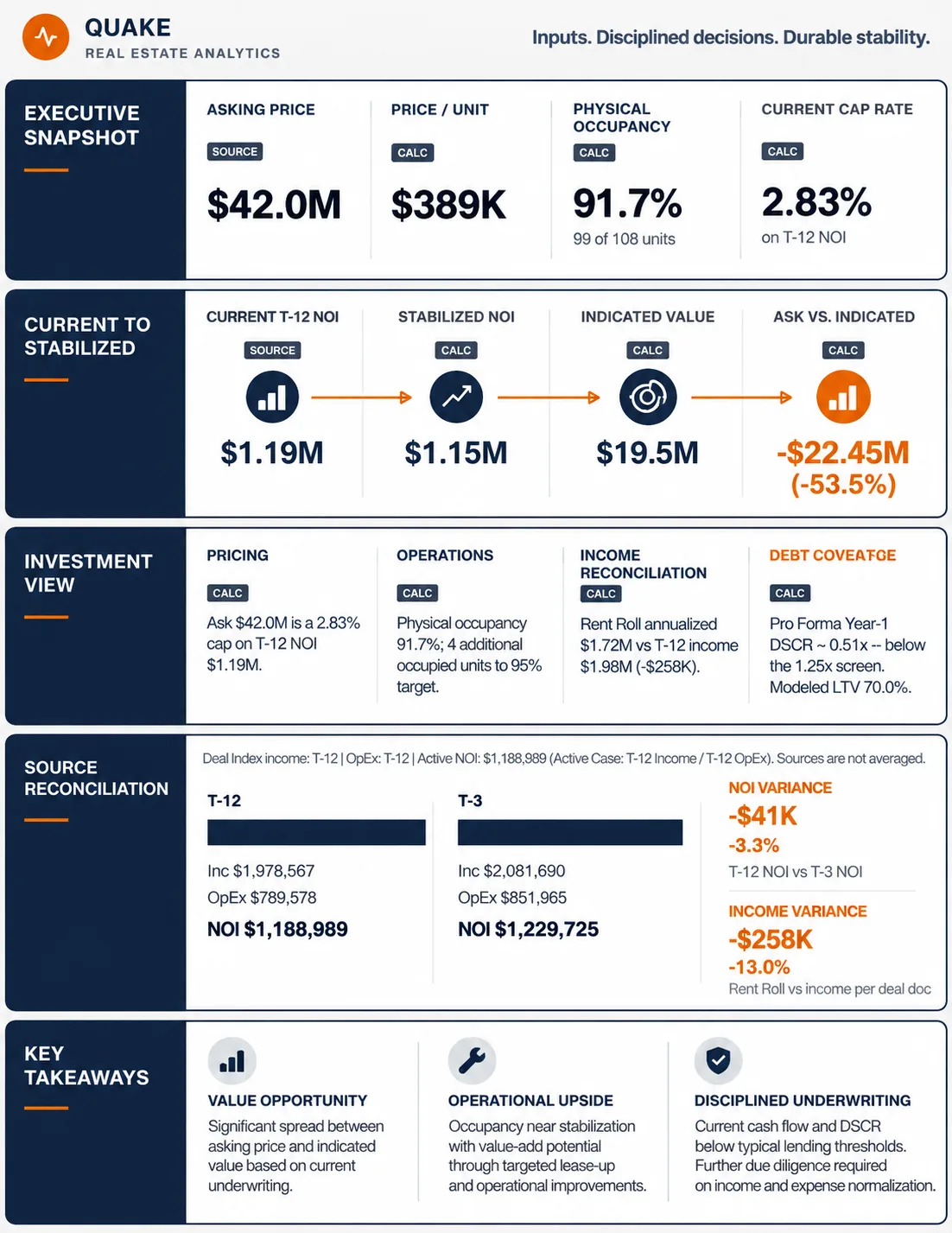
Where the numbers come from. The Deal Index, Cap Rate Lab, and the pro forma on this deal. The PDF says that it does not calculate a separate NOI. If purchase price or financing is missing, the debt and return lines say so instead of inventing them.
Do you need to run analyses first? The brief can be generated from the Deal Index and the pro forma inputs. Run Cap Rate Lab and the Pro Forma first if you want those results in the brief. The on-screen Pro Forma can project through year 10. Read the exit year printed in the PDF before you send it.
How to generate it. Create Presentation, then Buyer Report. QUAKE builds a PDF and opens it.
Full Deal Report
Who it is for. The person who wants the whole working file: you, a partner, or a file you will reopen later.
What it contains. The completed sections on the screen, copied in site order. That includes Side-by-Side, the Deal Matrix, and each analysis drawer that has a result. It does not rewrite them into a short story.
Where the numbers come from. Whatever is on the deal when you generate it.
Do you need to run analyses first? Yes. The button says to run each analysis section before generating the report. QUAKE assembles the sections that are already complete.
How to generate it. Create Presentation, then Full Deal Report. QUAKE shows a progress state, then opens the PDF. If a popup is blocked, allow popups for this site and generate it again.
Offering Memorandum
Who it is for. A broker or seller preparing a listing package.
What it contains. A six-page memorandum: cover, story, pricing, residences, market, and a confidentiality page. Photos are optional. You can choose the marketing tone. Underwriting values come from the Deal Index.
Do you need to run analyses first? The memorandum uses the deal you have built. Finish the Deal Index, and run the market and underwriting sections you want reflected in the story, before you design the pages.
How to generate it. Create Presentation, then Offering Memorandum. That opens OM Designer. When you leave the designer, QUAKE returns you to the live deal, not to a separate dashboard.
Broker Flyer
Who it is for. A broker who needs a two-page leave-behind.
What it contains. Page one sells the property. Page two sells the investment. Photos are optional. Figures come from the same deal, including asking price, units, year built, occupancy, and the NOI labels already in the file.
Do you need to run analyses first? The flyer uses the deal’s identity and the figures in the Deal Index. Run the analyses you want quoted before you generate it.
How to generate it. Create Presentation, then Broker Flyer.
Excel Underwriting
Who it is for. Anyone who wants the model in Excel, with formulas they can edit.
What it contains. Eight sheets: Assumptions, Rent Roll, T-12, 5-Year Pro Forma, Debt, Returns, Cap Lab, and Deal Summary. This workbook’s hold is five years. It is not a copy of the on-screen Pro Forma’s year-10 exit.
Where the numbers come from. The open deal. Orange cells are assumptions you can edit. Blue cells come from the saved deal. Green cells are formulas. Do not type over green cells. The Deal Summary says which figures are live formulas.
Do you need to run analyses first? The workbook needs the deal’s rent roll, T-12, and asking price. It calculates from those. It does not paste in the narrative from Deal Highlights or Analyze the Deal.
How to generate it. Create Presentation, then Excel Underwriting. QUAKE downloads Quake_Underwriting_Model_ plus the deal name, as an .xlsx file.
How to save it, get back to the deal, and use the vault
- Generate the output from Create Presentation. A PDF opens in QUAKE’s viewer. Excel downloads to your computer.
- Use the viewer’s download or the browser’s save dialog to keep a PDF on your computer. Print from the viewer if you want paper.
- Choose Back to Deal to close the viewer and return to the same workspace. From OM Designer, the return path also goes back to that deal.
- Save the deal first if you want the report in the Deal Vault. If the deal is not saved yet, QUAKE asks you to save it before the report can be added. You can dismiss that prompt with Not now.
A report stored with the deal is the file you generated. Reopening the deal later restores the underlying analysis so you can generate again. See Using the Deal Vault.